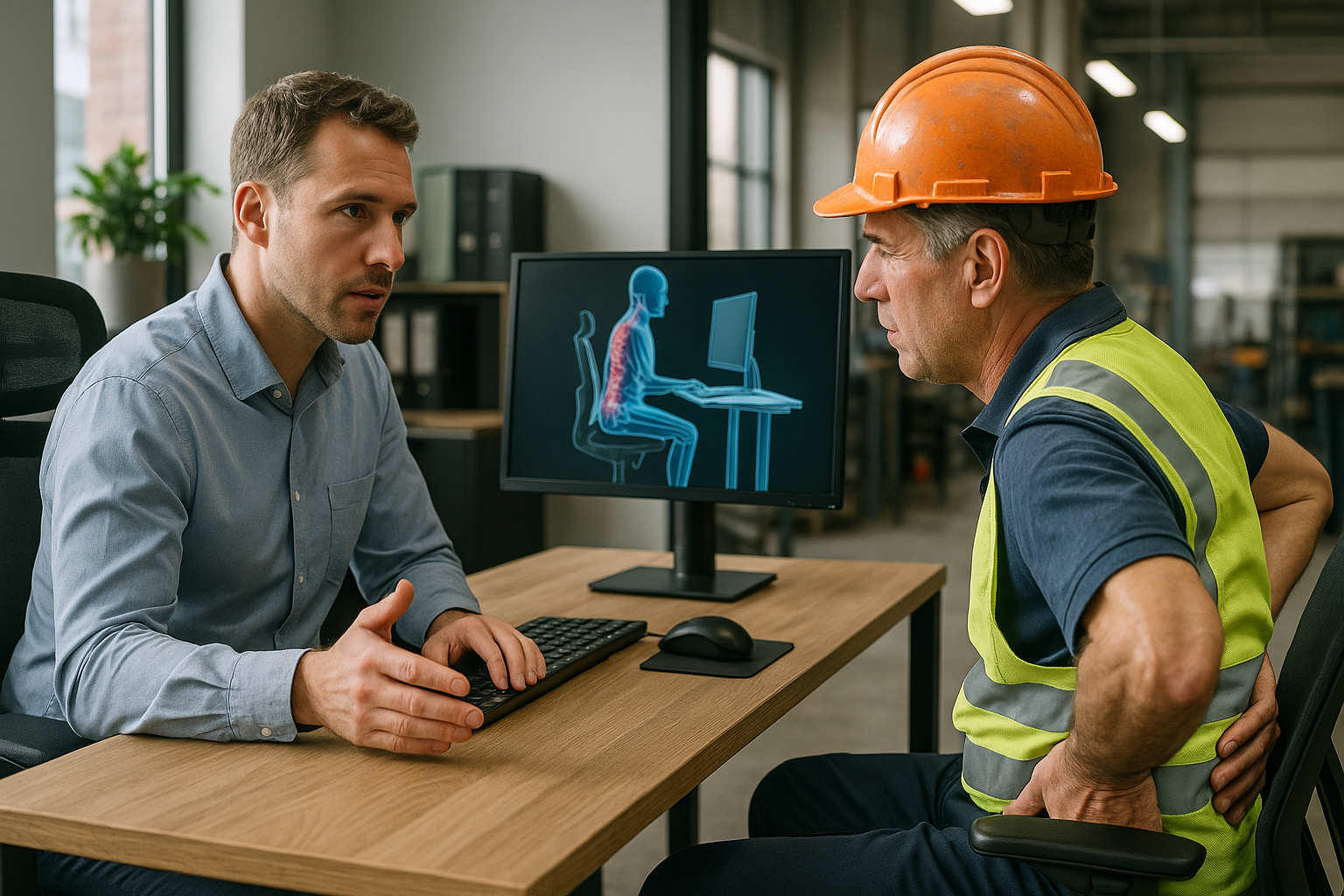


Back pain has become a modern everyday problem—especially for people who spend hours at a desk. It can start as a mild stiffness at the end of the workday and quietly grow into something that affects sleep, concentration, exercise habits, and even mood. For many, the most frustrating part is how “normal” it feels: you sit, you work, you push through. But when discomfort becomes routine, it can also become harder to reverse.
This is where prevention matters. Not in the broad, abstract sense of “being healthier,” but in the practical choices you make every day—how you sit, where your screen is placed, whether your chair supports you, and how often you change position. Small ergonomic decisions can reduce strain on the back and help your body handle long periods of work with less tension and fewer compensations.
Ergonomics is often misunderstood as a luxury or a one-time upgrade—buy a new chair, and the problem disappears. In reality, it’s a preventive approach: shaping your workspace and habits so your body can stay in a more natural, supported position. When your setup encourages a neutral spine and reduces repeated stress, you’re not just chasing comfort in the moment—you’re lowering the risk of recurring pain that can become chronic over time.
Why prevention starts with ergonomics
Most desk-related back pain isn’t caused by one dramatic movement. It’s the result of repeated load: hours of sitting, subtle slouching, leaning toward the screen, or perching on the edge of the chair. Over time, the back and surrounding muscles may work harder than they should, while other areas become stiff and underused. Ergonomics helps by reducing unnecessary strain and distributing effort more evenly across the body.
Think of it as setting your default position. When your chair, desk, and screen are aligned with how your body is built, you don’t need constant “good posture” willpower. Your workspace supports you automatically, making healthier positioning the easiest option—especially on busy days when you’re focused on tasks, not your spine.
A smarter way to protect your back at work
Prevention doesn’t require perfection. It requires awareness and a few targeted adjustments that match your body and your routine. In the next section, we’ll break down what ergonomics actually means, why prolonged sitting can challenge back health, and the most effective workstation and movement strategies to help reduce risk—without turning your workday into a complicated project.
Understanding ergonomics and why it matters for prevention
Ergonomics is the practice of fitting your work environment to your body and the tasks you perform. In a desk-based job, that usually means arranging your chair, desk, screen, and input devices so your joints stay in comfortable, efficient positions with minimal strain. The goal is not to “sit perfectly” all day, but to reduce the small, repeated stresses that add up over weeks and months.
Poor posture and prolonged sitting challenge back health in predictable ways. When you slump, the pelvis tends to roll backward and the lower back loses its natural curve. That can increase pressure on spinal structures and force surrounding muscles to work harder to stabilise you. Leaning forward toward a laptop or low monitor often adds neck and upper-back strain, while sitting still for long periods can reduce circulation and make hips and the mid-back feel stiff. Prevention is about interrupting these patterns early—before discomfort becomes your baseline.
Workstation setup that supports a neutral spine
A good setup makes the “better” position the easiest position. Start with the chair, because it determines where your pelvis and spine sit in relation to everything else.
- Chair height: Adjust so your feet rest flat on the floor and your knees are roughly level with your hips (or slightly lower if that feels better). If your feet don’t reach comfortably, add a footrest rather than lowering the chair and sacrificing desk height.
- Lumbar support: Use built-in lumbar support or a cushion so the lower back is gently supported. The support should fill the curve of your lower back without pushing you forward or forcing an exaggerated arch.
- Seat depth: Sit back so your back is supported, but leave a small gap (about 2–3 fingers) between the edge of the seat and the back of your knees. Too deep encourages slouching; too shallow reduces support.
- Monitor position: Place the screen directly in front of you, with the top of the display around eye level. This helps reduce the habit of craning the neck or rounding the upper back to “find” the screen.
- Keyboard and mouse placement: Keep them close enough that your elbows can stay near your sides. Aim for relaxed shoulders and straight wrists. If you’re reaching forward, you’ll often compensate by leaning and rounding through the back.
If you work on a laptop, consider a laptop stand plus an external keyboard and mouse. This allows you to raise the screen without forcing your hands into an awkward, elevated position.

Men's Posture Shirt™ - Black
Improves posture, can relieve pain and tension, and features patented NeuroBand™ technology.

Women's Posture Shirt™ - Black
Activates muscles, relieves pain and tension, and improves postural awareness.
Posture tips you can actually maintain
Posture is less about holding a rigid pose and more about keeping your spine in a neutral, supported range. A useful cue is to “stack” the ribcage over the pelvis. When those two areas are aligned, the back muscles can relax instead of constantly bracing.
- Use the backrest: Many people perch on the edge of the chair, which increases the workload on the lower back. Sit back so the chair can do its job.
- Keep shoulders down and relaxed: If your shoulders creep upward, check whether the desk is too high or the keyboard is too far away.
- Avoid the forward head drift: Bring the screen to you rather than bringing your head to the screen. Even small forward shifts can increase strain in the neck and upper back.
Prevention improves when you treat posture as a series of quick resets throughout the day, not a single position you must “hold” for hours.
Movement and breaks: the missing ergonomic strategy
Even the best chair can’t replace movement. Regular position changes help reduce stiffness, improve circulation, and give overworked tissues a break. A simple approach is to stand up at least once every hour for 1–2 minutes. Walk to refill water, do a few gentle shoulder rolls, or stretch the hips and upper back.
Try rotating between a few “good” sitting positions rather than searching for one perfect posture. Small shifts—changing leg position, adjusting the recline slightly, or standing for a short call—can support prevention by lowering continuous load on the same areas.
What the data suggests about ergonomic adjustments
Back pain is extremely common among office workers, and research consistently links prolonged sitting and poorly designed workstations with increased discomfort. Studies on workplace ergonomics also show that adjusting the workstation and improving work habits can reduce musculoskeletal symptoms, particularly when changes include both equipment setup and behaviour (like taking breaks and varying posture). The practical takeaway is straightforward: prevention works best when you combine a supportive setup with regular movement, rather than relying on a single upgrade.
Advanced ergonomic solutions for prevention
Once the basics of chair height, monitor position, and regular movement are in place, the next step is choosing tools that make healthy positioning easier to maintain. Advanced ergonomic solutions are less about “perfect posture” and more about reducing repeated strain, improving comfort, and supporting prevention over long workdays.
Ergonomic accessories that reduce strain
Small accessories can have a big effect when they solve a specific mismatch between your body and your workstation:
- Standing desk or sit-stand converter: Alternating between sitting and standing can reduce continuous load on the lower back. The goal is variety, not standing all day. If you stand, keep the screen and input devices at the same ergonomic heights you would use when seated.
- Footrest: Useful when the chair must be higher to match desk height. A stable footrest helps keep the pelvis more level and reduces the tendency to slide forward and slouch.
- External keyboard and mouse (especially for laptop users): This allows the screen to be raised without forcing the shoulders up or the wrists into awkward angles.
- Ergonomic keyboard or vertical mouse: These can reduce wrist and forearm strain for some people, which may indirectly support better shoulder and upper-back positioning by reducing tension and compensations.
- Document holder or monitor arm: Helpful if you frequently reference papers or use multiple screens. Keeping materials at a similar visual height reduces repeated neck flexion and rotation.
When choosing accessories, prioritise adjustability. Bodies, tasks, and days vary, and prevention improves when your setup can adapt quickly.
Technology that supports healthier work habits
Ergonomics is also behavioural. Even a well-designed workstation can be undermined by long, uninterrupted sitting or creeping forward toward the screen. Technology can help by making healthy habits easier to remember and easier to repeat.
- Break reminder apps and timers: Simple prompts to stand, walk, or reset posture can reduce the “hours disappeared” effect during focused work.
- Wearables and posture cues: Some devices provide gentle feedback when you’ve been still for too long or when your upper body position changes significantly. Used well, these tools support awareness rather than forcing rigid posture.
- Camera-based workstation checks: Some apps guide you through screen height, sitting distance, and desk alignment. The value is consistency: you can re-check your setup after moving locations or changing equipment.
The best tech is the kind you will actually use. If a tool feels intrusive, a simple calendar reminder for movement breaks may be more effective for prevention.
Real-life applications: what success looks like
In practice, the most successful ergonomic improvements tend to follow a pattern: identify the main trigger, adjust the workstation, then reinforce the change with a habit. For example, someone who works on a laptop may reduce neck and upper-back strain by raising the screen and adding an external keyboard and mouse, then pairing that upgrade with a short standing break each hour. Another common win is adding a footrest and improving lumbar support to reduce lower-back fatigue, especially for people who previously sat with unsupported feet or perched forward.
In workplace settings, teams often see better outcomes when ergonomic changes are treated as a process rather than a one-time purchase. A short check-in after a week or two—adjusting monitor height, chair settings, and break routines—can make the difference between equipment that looks good on paper and a setup that genuinely supports prevention day after day.
Frequently Asked Questions
What is the best chair for preventing back pain?
The best chair is one that fits your body and is adjustable. Look for seat height adjustment, supportive lumbar support, adjustable backrest recline, and enough seat depth to support the thighs while leaving a small gap behind the knees. Armrests should allow relaxed shoulders and elbows close to the body. A chair that can be fine-tuned supports prevention because it helps you maintain a neutral spine with less effort.
How often should I take breaks to prevent back pain?
A practical target is to stand up at least once every hour for 1–2 minutes. If possible, add a slightly longer break every few hours to walk and gently move the hips and upper back. The key is frequency: short, regular movement breaks support prevention by reducing stiffness and continuous load in the same tissues.
Can back pain be completely prevented with ergonomics?
Ergonomics can significantly reduce risk and frequency of discomfort, but it cannot guarantee that back pain will never occur. Stress, sleep, overall activity level, previous injuries, and individual anatomy also play a role. The most realistic approach is layered prevention: a supportive workstation, regular movement, and healthy daily habits such as strength and mobility work.
Are ergonomic products worth the investment?
They can be, if they solve a clear problem in your setup and you use them consistently. A monitor arm, external keyboard and mouse for laptop work, or a chair with proper adjustability can reduce daily strain and improve comfort over time. For many people, prevention-focused upgrades also reduce lost productivity and the need for reactive fixes later.
Källor
- Hearing Health Foundation. (n.d.). "5 Critical Facts About Hearing Protection."
- Stedmoderblomster. (n.d.). "Oplev en ny verden af lyd."
- Vive. (n.d.). "Uhort."
- MeetAugust. (n.d.). "Artemether and Lumefantrine Oral Route."
- Sundhedsstyrelsen. (n.d.). "Forebyggende hjemmebesøg til ældre - Vejledning."
- Lev. (n.d.). "2012_8."
- Region Hovedstaden. (n.d.). "Bilag til meddelelse."
- Tidsskrift.dk. (n.d.). "Sygdom og Samfund."
- Folketinget. (n.d.). "Svar på spørgsmål 331."
- FRA. (2018). "Handbook on European non-discrimination law."
- SUFO. (2020). "Vejledningen Høringsudkast."
- Miljøstyrelsen. (n.d.). "Miljøkonsekvensrapport for Sharco Duo Havmølleparkprojektet."
- DTHS. (2016). "Vejledning i udredning af kognitive vanskeligheder og kognitive kommunikationsvanskeligheder."