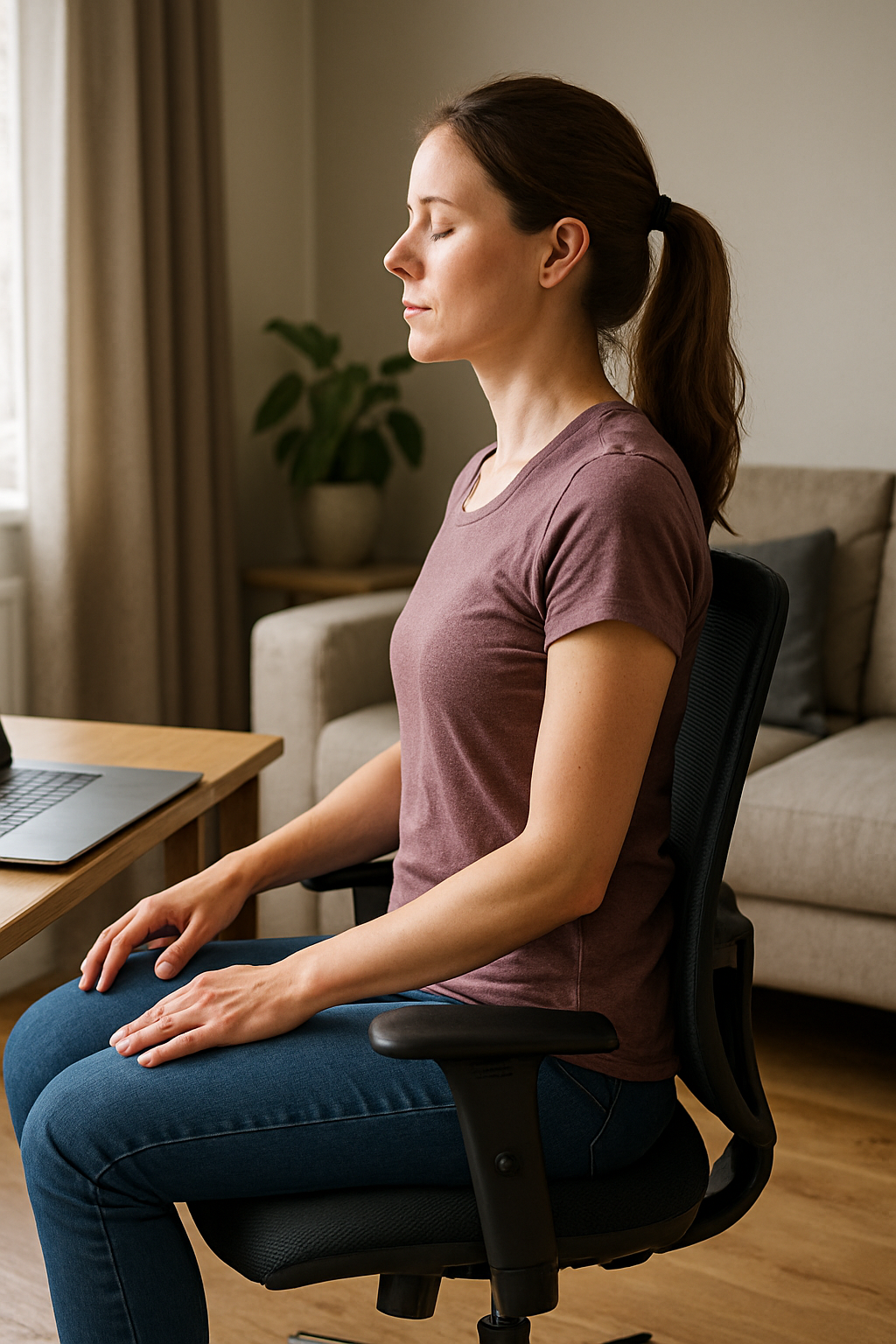


Have you ever stood up after a long day at your desk and felt like your body needed a “reset” before you could move normally again? Stiff hips, a tight neck, or a dull ache in the lower back can feel like an unavoidable part of modern work. But in many cases, the problem isn’t your workload—it’s how your body is positioned for hours at a time.
That’s where office chair ergonomics comes in. Ergonomics is essentially the practice of fitting your work setup to your body, not forcing your body to adapt to the setup. As more people work hybrid, spend longer hours at screens, and rely on laptops at kitchen tables, awareness has grown around how daily posture affects comfort, energy, and long-term musculoskeletal health.
An ergonomic office chair is often described as a “comfort upgrade,” but its purpose goes beyond feeling nice. The real goal is to help you maintain a neutral posture—where joints and the spine are aligned in a way that reduces unnecessary strain. When a chair supports your natural curves and allows small posture changes throughout the day, it can help reduce the kind of repetitive stress that contributes to common musculoskeletal disorders.
Why office chair ergonomics matters more than you think
Sitting is not automatically harmful, but sitting still in a poorly supported position can be. If your seat is too high, your legs may dangle and pressure can build under the thighs. If it’s too deep, the seat edge can press behind the knees. If the backrest doesn’t meet your lower back, it’s easy to collapse into a rounded posture and let the neck and shoulders compensate.
The good news: small adjustments can make a noticeable difference. The best ergonomic setups aren’t about “perfect posture” all day—they’re about creating a chair-and-desk relationship that makes good posture the easiest option.
What you’ll learn in this guide
In the next sections, we’ll break down what actually makes a chair ergonomic (and why one size rarely fits all). You’ll also learn how to adjust key settings—like seat height, seat depth, backrest angle, lumbar support, and armrests—so the chair fits you, not the other way around.
Finally, we’ll look at how an ergonomic chair supports a healthier workday when it’s paired with smart workstation alignment and regular movement. Because even the best chair can’t replace the benefits of changing positions, taking short breaks, and giving your body a reason to move.
What makes a chair truly ergonomic?
Office chair ergonomics starts with one core goal: helping your body stay in a neutral posture. Neutral doesn’t mean rigid or “perfect.” It means your joints are aligned in a way that minimises strain—ears roughly over shoulders, shoulders over hips, and the spine supported in its natural curves rather than forced into a rounded or over-arched position.
A chair becomes ergonomic when it can adapt to your body and your tasks. That’s why adjustability matters so much. If you can’t change the seat height, seat depth, backrest angle, and lumbar support position, you’re left compensating with your neck, shoulders, and lower back. Over time, those small compensations can add up to fatigue, stiffness, and recurring discomfort.
Adjustability: the features that matter most
Many chairs look supportive, but office chair ergonomics is less about appearance and more about how well the chair can be tuned to your proportions. Prioritise these adjustments:
- Seat height: Your feet should rest flat on the floor (or on a footrest) without pressure building under the thighs. A simple check is whether your knees sit roughly around a 90–100° bend while you feel stable through the feet.
- Backrest angle and recline tension: A slight recline can reduce spinal loading compared to sitting bolt upright. The key is choosing an angle you can maintain while still reaching your keyboard and mouse without leaning forward.
- Armrest height and width: Armrests should support your forearms lightly, with shoulders relaxed—not lifted. If armrests force your shoulders up or prevent you from getting close to the desk, they can create more tension than they solve.
- Lumbar support: The lumbar support should meet the natural inward curve of your lower back, typically around belt height. It should feel like gentle support, not a hard push that forces your spine forward.
One practical rule: if you feel like you’re “holding yourself up” to stay comfortable, the chair likely needs adjusting (or it lacks the adjustment range you need).
Seat depth and width: the overlooked comfort factor
Seat dimensions are a major part of office chair ergonomics because they affect circulation, pelvic position, and how easily you can use the backrest. If the seat is too deep, the front edge can press behind the knees and discourage you from sitting back. If it’s too shallow, you may feel under-supported and slide forward.
A common guideline is that seat depth should support most of the thigh—roughly 80–95% of the distance from the back of your buttocks to the back of your knee. An easy self-check is the “finger gap” rule: when you’re sitting all the way back, aim for about 2–3 fingers of space between the seat edge and your calf.
Seat width matters too. You should be able to sit centred with enough room to shift position slightly during the day, without the side edges pressing into your thighs.
Align the chair with your whole workstation
Even a well-designed chair can’t do its job if the desk and monitor force you into awkward positions. Office chair ergonomics works best when the chair, desk, keyboard, and screen support the same neutral alignment.
- Desk and armrest relationship: Set armrests so your elbows can rest near your sides at about a right angle, with forearms supported without shrugging. Ideally, armrests sit level with or slightly below desk height so you can pull in close.
- Monitor height and distance: Position the screen so the top of the display is at or slightly below eye level, helping you avoid craning the neck. Keep the monitor far enough away that you’re not leaning forward to read, but close enough that you’re not squinting.
- Keyboard and mouse placement: Keep them close so your elbows don’t drift forward. If you’re reaching, your shoulders often follow—leading to tension through the upper back and neck.
Movement is part of ergonomics, not a bonus
The best office chair ergonomics supports comfort, but it doesn’t eliminate your body’s need to move. Prolonged stillness is often the real trigger for stiffness. A helpful rhythm is the 20-8-2 rule: spend about 20 minutes sitting, 8 minutes standing, and 2 minutes moving. That “moving” can be as simple as walking to refill water, doing a few shoulder rolls, or gently stretching the hips.
Try these quick break ideas during the day:
- Seated spine reset: Sit tall, inhale, and gently draw your shoulder blades down and back for 3–5 breaths.
- Hip opener: Stand up and take a short lunge stretch on each side for 20–30 seconds.
- Calf and ankle pump: While seated, alternate lifting heels and toes to encourage circulation—especially helpful if you tend to sit very still.
Think of your chair as a tool that makes good alignment easier, while movement is what keeps your body feeling capable throughout the workday.

Men's Posture Shirt™ - Black
Supports and stimulates muscle activity for better posture at work or leisure.

Women's Posture Shirt™ - Black
Improves posture and relieves tension by activating muscles during daily activities.
Office chair ergonomics for specific needs
Once your chair and workstation are set up for neutral posture, the next step is making small, targeted adjustments based on where you feel discomfort. Office chair ergonomics is rarely one-size-fits-all: the same chair can feel supportive for one person and irritating for another if the settings do not match body proportions, mobility, and daily tasks.
For lower back pain
Lower back discomfort often increases when the pelvis rolls backward and the lumbar curve flattens. Start by sitting all the way back so the backrest can do its job. Then:
- Set lumbar support first: Align it with the natural curve around belt height. Aim for gentle contact rather than a hard push.
- Check seat depth: Keep the 2–3 finger gap behind the knees so you can sit back without pressure at the calves.
- Add a slight recline: A small recline can reduce sustained loading compared to sitting perfectly upright, as long as you can still keep the keyboard close.
For neck and shoulder tension
Neck tension is often a downstream problem: the shoulders lift or round forward when the desk, armrests, or screen position is off. Use this sequence:
- Armrests: Lower them until your shoulders feel heavy and relaxed. If armrests prevent you from getting close to the desk, lower them further or move them inward (or remove them if they cannot be adjusted appropriately).
- Keyboard and mouse distance: Bring them closer so elbows stay near your sides rather than reaching forward.
- Monitor height: Keep the top of the screen at or slightly below eye level to reduce forward head posture.
For sciatica or hip discomfort
Sciatica-like symptoms can be aggravated by pressure, prolonged stillness, or a seat that encourages slumping. Prioritise pressure distribution and frequent position changes:
- Reduce pressure behind the thighs: Re-check seat depth and avoid a seat edge that presses behind the knees.
- Keep hips level: Sit centred with both feet supported; avoid crossing legs for long periods.
- Use movement as a tool: Stand, walk, or do brief hip mobility breaks regularly. Even excellent office chair ergonomics cannot replace circulation and nerve-friendly movement.
Choosing the right ergonomic chair
If you are evaluating a new chair (or auditing what you already have), focus on whether the chair can be adjusted to fit both your body and your work. A chair is only “ergonomic” when it fits the user, the workstation, and the tasks performed throughout the day.
Quick checklist: does your chair support office chair ergonomics?
- Seat height: Feet can rest flat on the floor or a footrest without pressure under the thighs.
- Seat depth: You can sit fully back while keeping a 2–3 finger gap behind the knees.
- Backrest and lumbar support: Lumbar support is adjustable and meets your lower back at belt height.
- Recline and tension: You can recline slightly and still feel supported, without sliding forward.
- Armrests: Height and width adjust so forearms are lightly supported with relaxed shoulders.
- Stability: A stable base (commonly a five-point base) and appropriate casters for your floor.
- Controls: Adjustments are easy to reach and use while seated, so you actually change settings when needed.
Considerations for home offices and shared workplaces
Home setups often involve compromises (kitchen tables, laptops, limited space), so prioritise the adjustments that prevent you from leaning forward: seat height, lumbar support, and armrest/desk alignment. In shared offices, the best approach is choosing chairs with broad adjustment ranges and simple, intuitive controls, then ensuring employees know how to set them up. For diverse teams, it is also worth planning for accessories such as footrests or monitor risers to help each person achieve a neutral posture without makeshift solutions.
Frequently Asked Questions
What makes a chair ergonomic?
A chair supports office chair ergonomics when it helps you maintain a neutral posture, offers meaningful adjustability (seat height and depth, backrest and lumbar support, armrests), and fits both your body dimensions and your workstation setup.
How do I adjust my office chair for optimal comfort?
Start from the ground up: set seat height so your feet are supported, adjust seat depth so you can sit back with a small gap behind the knees, position lumbar support at belt height, choose a supportive backrest angle, and then set armrests so shoulders stay relaxed. Finish by aligning keyboard, mouse, and monitor so you do not reach or crane your neck.
Can an ergonomic chair prevent back pain?
It can help reduce strain and discomfort, especially when lumbar support, seat depth, and recline are adjusted correctly. However, prevention also depends on movement habits, task variation, and overall workstation alignment.
Are ergonomic chairs suitable for all body types?
Many are, provided they have a wide adjustment range. Some people may still need add-ons such as a footrest (for shorter users) or a chair with a higher backrest and greater seat depth range (for taller users).
Do I still need to take breaks if I have an ergonomic chair?
Yes. Office chair ergonomics works best when paired with regular posture changes and movement. Short, frequent breaks help circulation, reduce stiffness, and prevent the “locked-in” feeling that can build up during long periods of sitting.
Källor
- Spine-Health (n.d.). "9 Ergonomic Tips for Synchronizing Your Work Station and Office Chair."
- OFDC (n.d.). "Five Elements of an Optimal Ergonomic Office Chair."
- GSA (n.d.). "Ergonomic Seat Adjustment Guide."
- CCOHS (n.d.). "Office Ergonomics: Chairs."
- Mayo Clinic (n.d.). "Office Ergonomics: Your How-To Guide."
- Worksite International (n.d.). "Six Chair Features You Can't Do Without."
- University of Pittsburgh (n.d.). "How to Choose an Ergonomic Chair."
- Eureka Ergonomic (n.d.). "Ergonomic Office Desk Chairs Collection."
- Herman Miller (n.d.). "Office Chairs: Ergonomic Chairs."
- Millers at Work (n.d.). "5 Interesting Facts About Office Chairs You Should Know."
- Office Chairs USA (n.d.). "Ergonomic Chairs."
- Herman Miller (n.d.). "Ergonomics in the Workplace: Office Chairs."
- Alexander Technique London (2015). "The Shocking Truth About Ergonomic Chairs."